Adding a Black Friday color to a group without breaking it
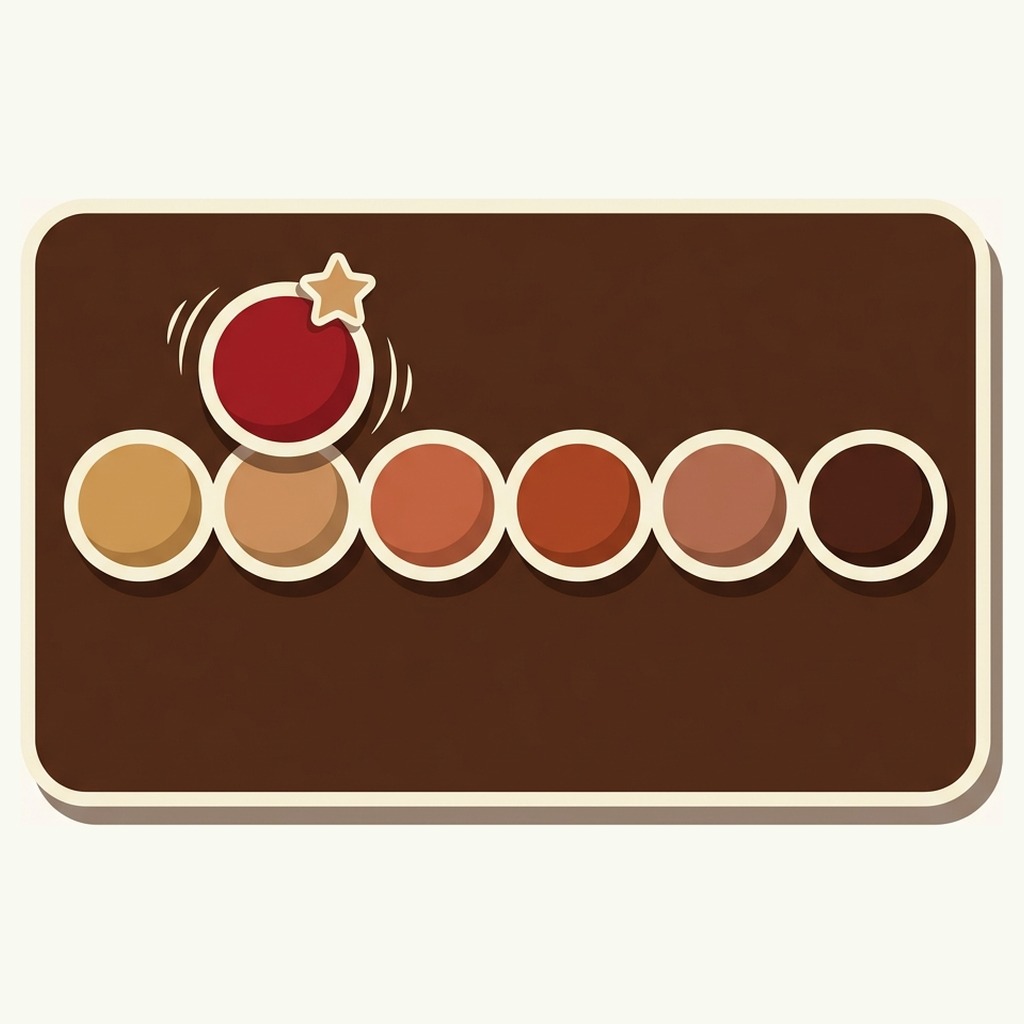
Short answer: add the product to the existing group and give it an option value, and it appears in the row straight away. Rubik Combined Listings reads the swatch image, the price and the stock from the product itself, so nothing else needs setting. Drafting it in December drops it out on its own. Free plan, 5.0 stars, 91 reviews.
The seasonal colorway is one of the few genuinely good Black Friday ideas. Not another 30 per cent off everything. One color, made for the weekend, in a family shoppers already know.
The problem is always the same. It is a new Shopify product, and a new product has no relationship to the eleven colors it belongs with, so it lands on the collection page as a stranger and the family it was made for never sees it.
Fixing that takes about two minutes. Retiring it properly in December takes about five, and that second part is where most shops make the mess.
In this post
- Adding it to the family
- Making it lead the row
- Labelling it as limited
- What to watch over the weekend
- Taking it down in December
- Timing it around the freeze
- Questions merchants ask
Adding it to the family
Create the product the way you always would, then open the product group linking those colors as variants and add it. Give it an option value, which is the text under the swatch, and give it a swatch: a color, an image, or nothing, in which case the product’s own first image is used.
That is the whole job. Everything else is read from the product itself and stays current as you edit it: the title, the price, the images and the stock. There is no separate copy to keep in step and nothing to re-save when you change the price on the Thursday night.
If the new product is not appearing, there are only two likely reasons and both are quick. It is still a draft, which excludes it on purpose and reverses itself the moment you set it active. Or it has no option value, which leaves nothing to render as a swatch, and that is the commonest one when a product was created in a hurry.
The AI will write the option value for you if you would rather not think about it. Magic Fill reads the product’s image and title, writes the value, picks the hex color, and handles a second color when the product is two toned. It fills blanks and never overwrites a value you set by hand, so running it on a group where you have already named ten colors is safe.
Making it lead the row
A new color added to the end of a row of eleven is, for practical purposes, invisible. The first swatch in any row gets more attention than the eighth, in every shop, and a limited edition you spent three months sampling deserves better than position twelve.
Two ways to move it. Drag it to the front, because swatch order is the order of the products inside the group. Or set the group to push new products to the start, which does it automatically and keeps doing it for the next one.
I would drag it for one product and use the sorting rule if you are launching a seasonal color across a dozen families at once. The rule is also the better choice if somebody else on the team will be adding products while you are asleep.
Worth knowing what this costs. Position one was already earning its clicks for a reason, usually because it is your best seller, and moving it to position two will cost it some. That is the trade, it is a real one, and for four days it is almost always worth making. Check the clicks by position report afterwards rather than guessing.
Labelling it as limited
A swatch that looks like every other swatch reads like every other color. If the point is that this one is only here for four days, the row has to say so.
The option value is the cheapest place to do it. It is a free text field and it does not have to match the product title, so “Midnight, limited” says more than “Midnight” and costs nothing. Keep it short, because a long value stretches the swatch and pushes the rest of the row around.
For a bigger launch, subcategories do more. They split one group into labelled sections, so a row can read as Standard Edition and Limited Edition rather than as twelve colors in a line. The shopper sees the structure before they see the count, which is exactly what you want when one of the two sections is the story.
What I would not do is rely on a badge from your theme. Theme badges sit on the card, not in the swatch row, so a shopper already on the product page looking at eleven swatches never sees it. There is more on writing these in what to write in a swatch label.
What to watch over the weekend
Not conversion rate. Four days of peak traffic against a normal week is not a comparison, it is two different shops, and you will talk yourself into whatever you were already inclined to believe.
Watch the swatch clicks instead, and specifically two numbers.
- The limited color’s share of its family’s clicks. If a twelfth color is taking a fifth of the row’s clicks, the launch worked and the interesting question is whether to make it permanent. If it is taking a twelfth, it is just another color and the story did not land.
- Whether it sells out, and what happens after. A limited color that goes in a day and then collects clicks while struck through is telling you something much more valuable than a sales figure. Those clicks are people who wanted it and could not have it.
Which is why the sold out rule matters more on a limited color than anywhere else. Hide it and the moment it sells out it never existed. Strike it through and every shopper who came looking is counted. There is a whole post on the sold out swatch decision at peak, and a limited colorway is the case where it pays most.
Taking it down in December
Here is where shops make a mess, usually in the second week of December when everyone is tired.
Set the product to draft or archived and it drops out of its group by itself. Nobody has to open the group, nothing has to be unlinked, and the row closes up on its own. If you bring the color back next November, setting it active puts it back where it was.
What the app cannot decide for you is what happens to the URL, and that is a real decision because the page probably picked up links and rankings over the weekend. Three reasonable answers, in the order I would consider them:
- Leave it up, out of stock. Right when the color might return. The page keeps whatever it earned, the swatch can stay struck through, and the clicks keep counting as demand for next year.
- Redirect it to the closest sibling color. Right when it is gone for good. Point it at the nearest color in the same family, never at the collection: somebody who wanted midnight is not helped by a wall of coats.
- Redirect it to the collection. Only when nothing similar remains, which for a seasonal color inside an existing family should almost never be true.
If you are retiring several at once, Craftshift has a free Redirect CSV Generator that builds the file Shopify expects.
One thing you do not need to worry about either way: grouping never created or changed a URL in the first place, so there is nothing the app leaves behind to unpick. What grouping does to your product URLs covers that in full.
Timing it around the freeze
Black Friday is 27 November this year and Cyber Monday is the 30th. A sensible code freeze starts Friday 20 November, a week out.
Adding a product to a group is data rather than code, so it is not frozen by that date and you can launch a colorway on the Thursday night if you have to. What should be done before the freeze is everything structural: the subcategory labels, the sorting rule, the sold out settings and the swatch styling. Those are the things you do not want to be changing while the traffic is arriving.
The other pre-freeze check, and it is the one that actually bites: confirm the app embed is on for your live theme. It is per theme, so if anyone publishes an updated or duplicated theme during peak prep, the embed on the new one has never been switched on and every swatch row in the shop quietly stops rendering. There is no error. A switch is off. The full list is in what to check after grouping a catalog.
Rubikify has a wider Black Friday collection page guide if the seasonal color is part of a larger prep list.
Set the family up before the 20th
Five product groups are free with no time limit and no card, which covers the families a seasonal colorway usually lands in. Build the group now, get the sorting and sold out rules settled, and adding the actual product on launch night becomes a two minute job rather than a project. The pricing page covers the rest of the catalog.
Demo store | Docs | Help centre
Questions merchants ask
How do I group a Black Friday color with the family it belongs to?
Add the product to the group and give it an option value. In Rubik Combined Listings everything else, including the swatch image, the price and the stock, is read from the product itself and stays current as you edit it, so there is no second copy to maintain. Magic Fill will write the option value and pick the hex color if you would rather not. The app is 5.0 across 91 App Store reviews and five groups are free with no time limit.
How do I remove the color again afterwards?
Set the product to draft or archived. It drops out of its group by itself, with no group editing, and setting it active again puts it back. That is a deliberate behaviour rather than a side effect, because seasonal products come and go and nobody wants to maintain a group calendar.
Can the limited color be a different price from the rest of the family?
Yes, and on a product page the swatch can show each product’s own price under it. Collection cards leave prices off by default, because a card already carries one. If the limited color is dearer, say so in the option value as well, so the number is explained before it is read.
Will adding a product to a group change anything on my catalog?
No. The grouping is stored separately and drawn at render time, so no handle, redirect, canonical or sitemap entry is created or changed. The product you added is an ordinary product that now has a swatch row on it.
Should the seasonal color be first in the row?
For the launch, yes. Position one gets the most attention on any row, and a limited edition at position twelve is invisible. It does cost the color that was there, usually your best seller, so put it back afterwards rather than leaving the new arrival at the front forever.
Can I do all this during a code freeze?
Adding a product to a group is data, not code or theme changes, so yes. Styling, sorting rules and sold out settings should be decided before the freeze, because those are the changes that alter how every family renders rather than what is in one of them.
Related reading
- Sold out colors on Black Friday, which matters most on a limited run
- What to write in a swatch label, where a limited color earns its word
- What to check after grouping a catalog, including the embed check before peak
- Which colors to restock, for deciding whether the limited one comes back
- Discount Code Generator on Craftshift, for the rest of the weekend
Decide in December, not in January
The useful question about a limited colorway is not whether it sold, because a color launched into the busiest weekend of the year sells. It is whether it took a disproportionate share of its family’s attention.
That number is sitting in the click report on the Monday morning, and it is the one that tells you whether you made a good color or just made a color during Black Friday.